
Deploy a Bun application on DigitalOcean
DigitalOcean is a cloud platform that provides a range of services for building and deploying applications.
This guide deploys a Bun HTTP server to DigitalOcean using a Dockerfile.
- Create a new DigitalOcean Container Registry
Create a new Container Registry to store the Docker image.
In the DigitalOcean dashboard, go to Container Registry, and enter the details for the new registry.
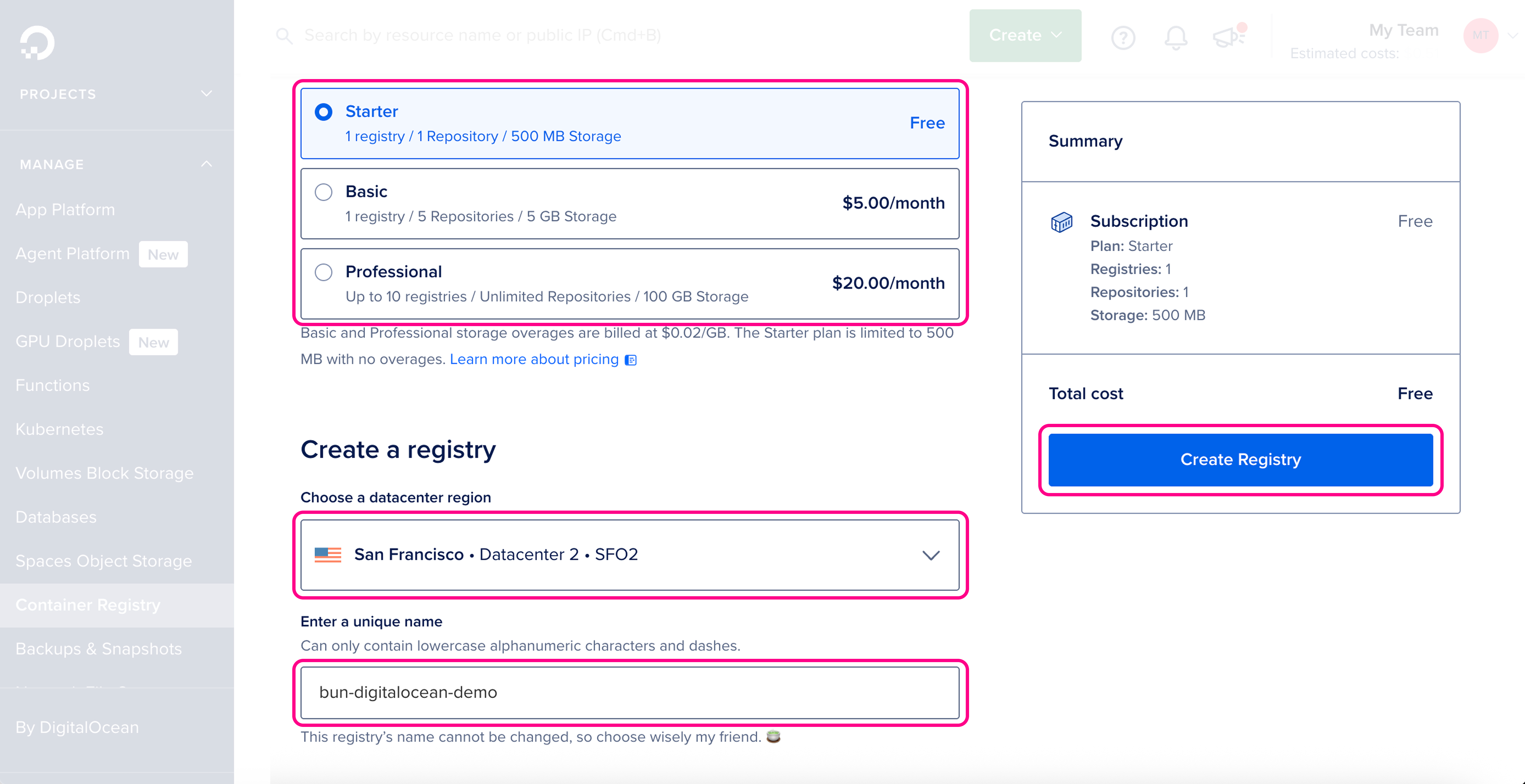
Make sure the details are correct, then click Create Registry.
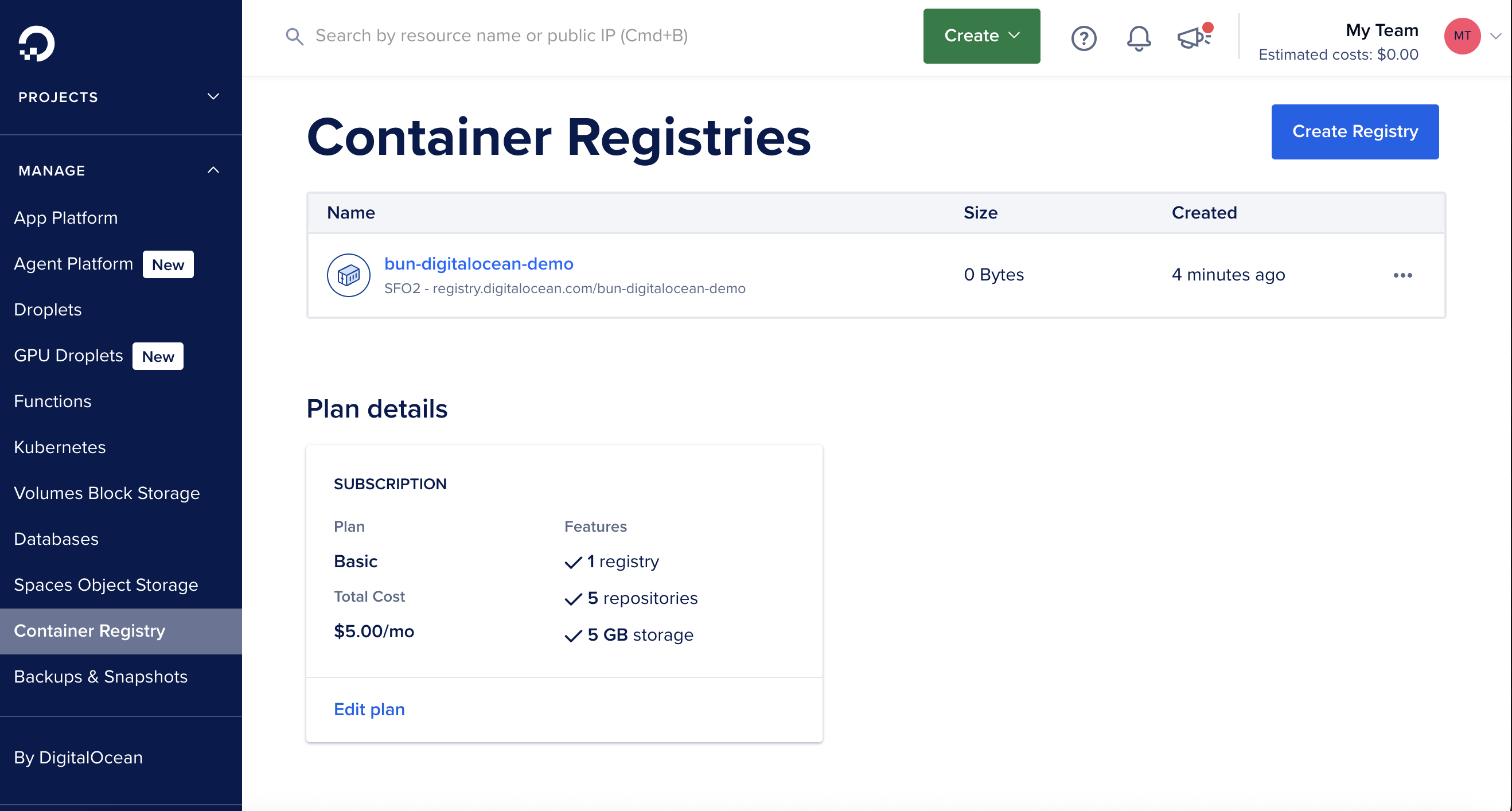
terminaldoctl registry create bun-digitalocean-demoTextName Endpoint Region slug bun-digitalocean-demo registry.digitalocean.com/bun-digitalocean-demo sfo2You should see the new registry in the DigitalOcean registry dashboard:
- Create a new Dockerfile
Create a new
Dockerfilein the root of your project. This file contains the instructions to initialize the container, copy your local project files into it, install dependencies, and start the application.Dockerfile# Use the official Bun image to run the application FROM oven/bun:debian # Set the work directory to `/app` WORKDIR /app # Copy the package.json and bun.lock into the container COPY package.json bun.lock ./ # Install the dependencies RUN bun install --production --frozen-lockfile # Copy the rest of the application into the container COPY . . # Expose the port (DigitalOcean will set PORT env var) EXPOSE 8080 # Run the application CMD ["bun", "index.ts"]Create a new
.dockerignorefile in the root of your project. It lists the files and directories to exclude from the container image, such asnode_modules. Excluding them keeps builds faster and smaller:.dockerignorenode_modules Dockerfile* .dockerignore .git .gitignore README.md LICENSE .vscode .env # Any other files or directories you want to exclude - Authenticate Docker with DigitalOcean registry
Before building and pushing the Docker image, authenticate Docker with the DigitalOcean Container Registry:
terminaldoctl registry loginTextLogging Docker in to registry.digitalocean.com Notice: Login valid for 30 days. Use the --expiry-seconds flag to set a shorter expiration or --never-expire for no expiration. - Build and push the Docker image to the DigitalOcean registry
Make sure you're in the directory containing your
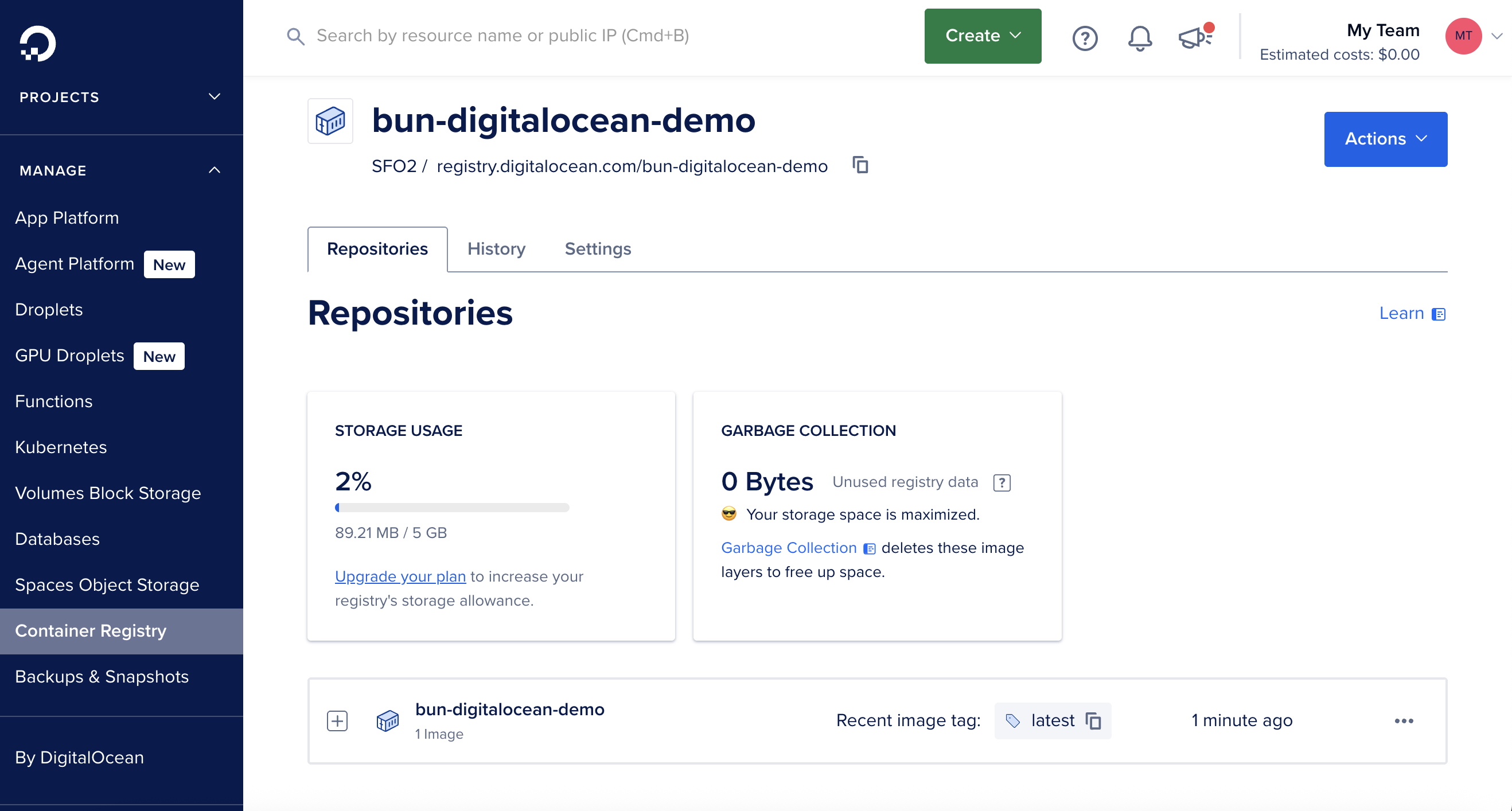
Dockerfile, then build and push the Docker image to the DigitalOcean registry in one command:terminaldocker buildx build --platform=linux/amd64 -t registry.digitalocean.com/bun-digitalocean-demo/bun-digitalocean-demo:latest --push .Once the image is pushed, you should see it in the DigitalOcean registry dashboard:
- Create a new DigitalOcean App Platform project
In the DigitalOcean dashboard, go to App Platform > Create App. You can create a project directly from the container image.
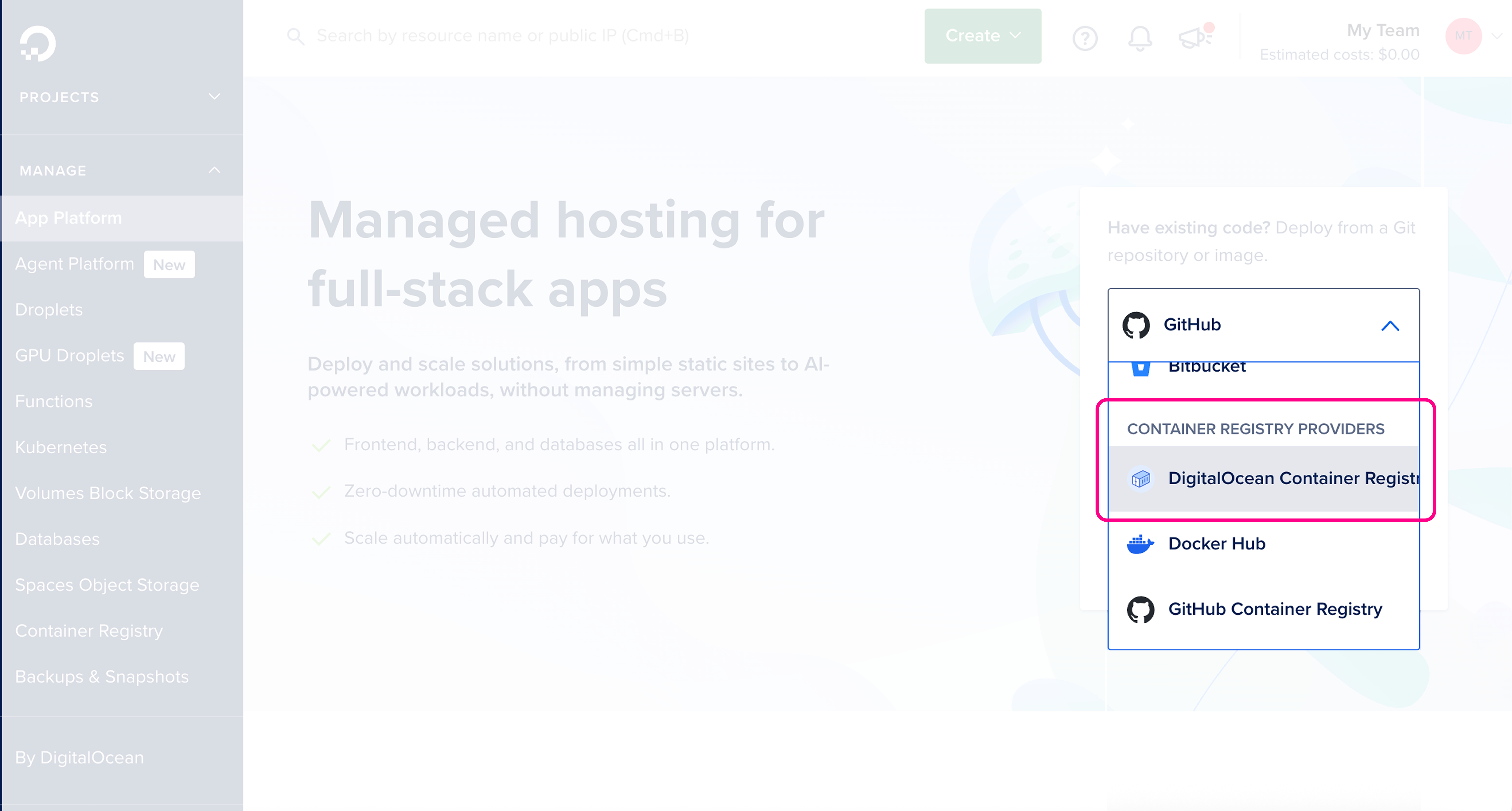
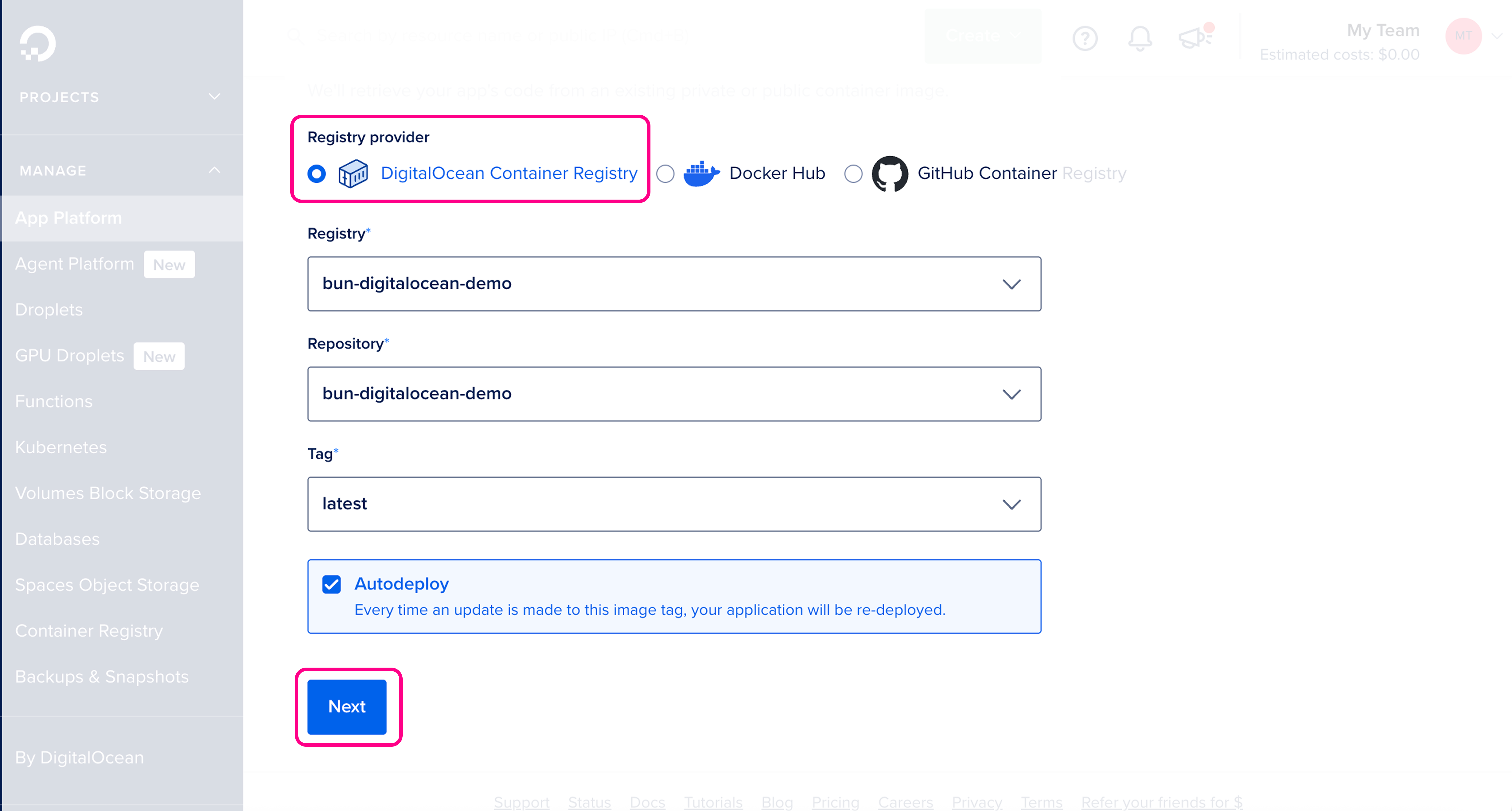
Make sure the details are correct, then click Next.
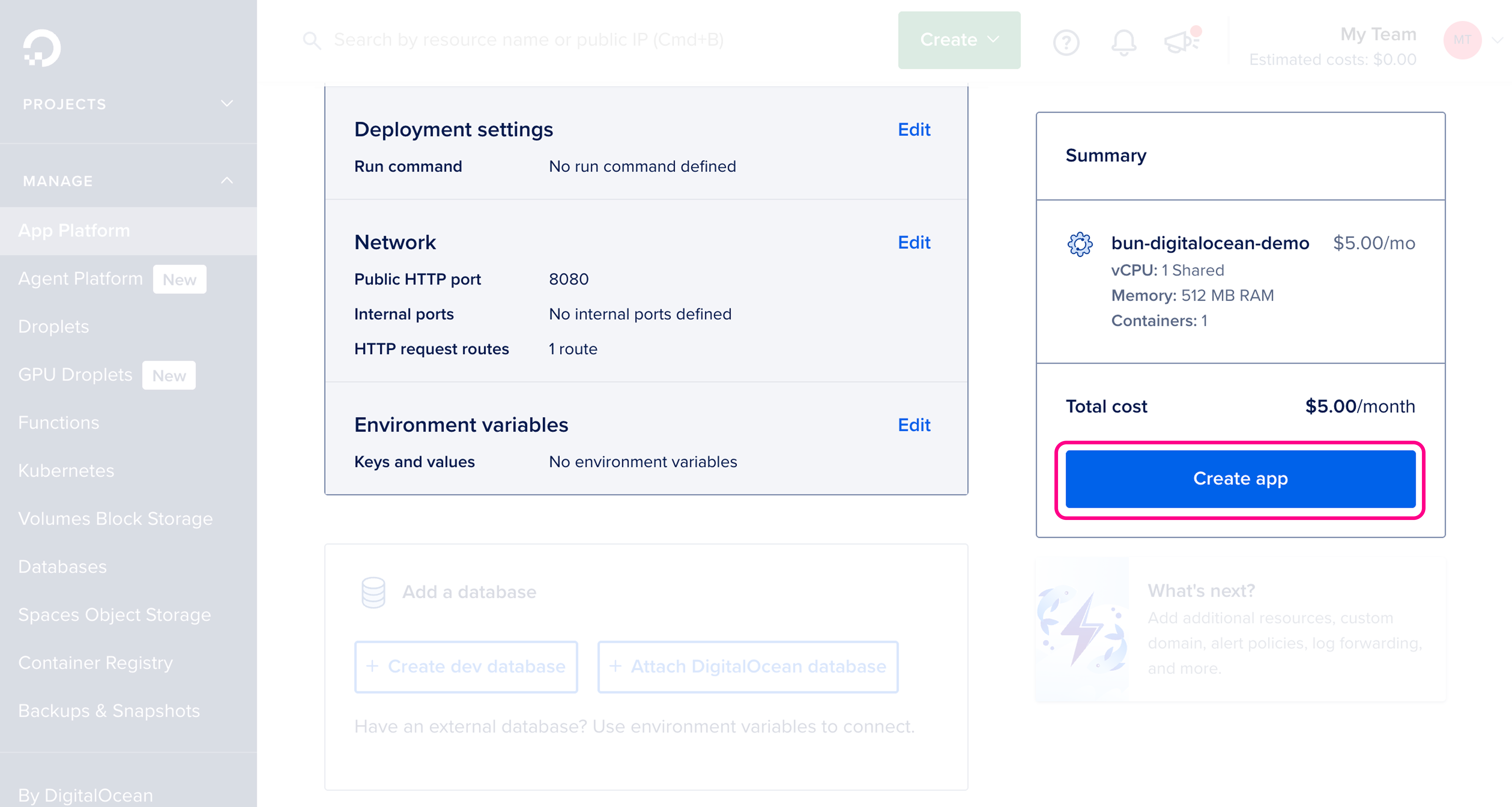
Review and configure resource settings, then click Create app.
- Visit your live application
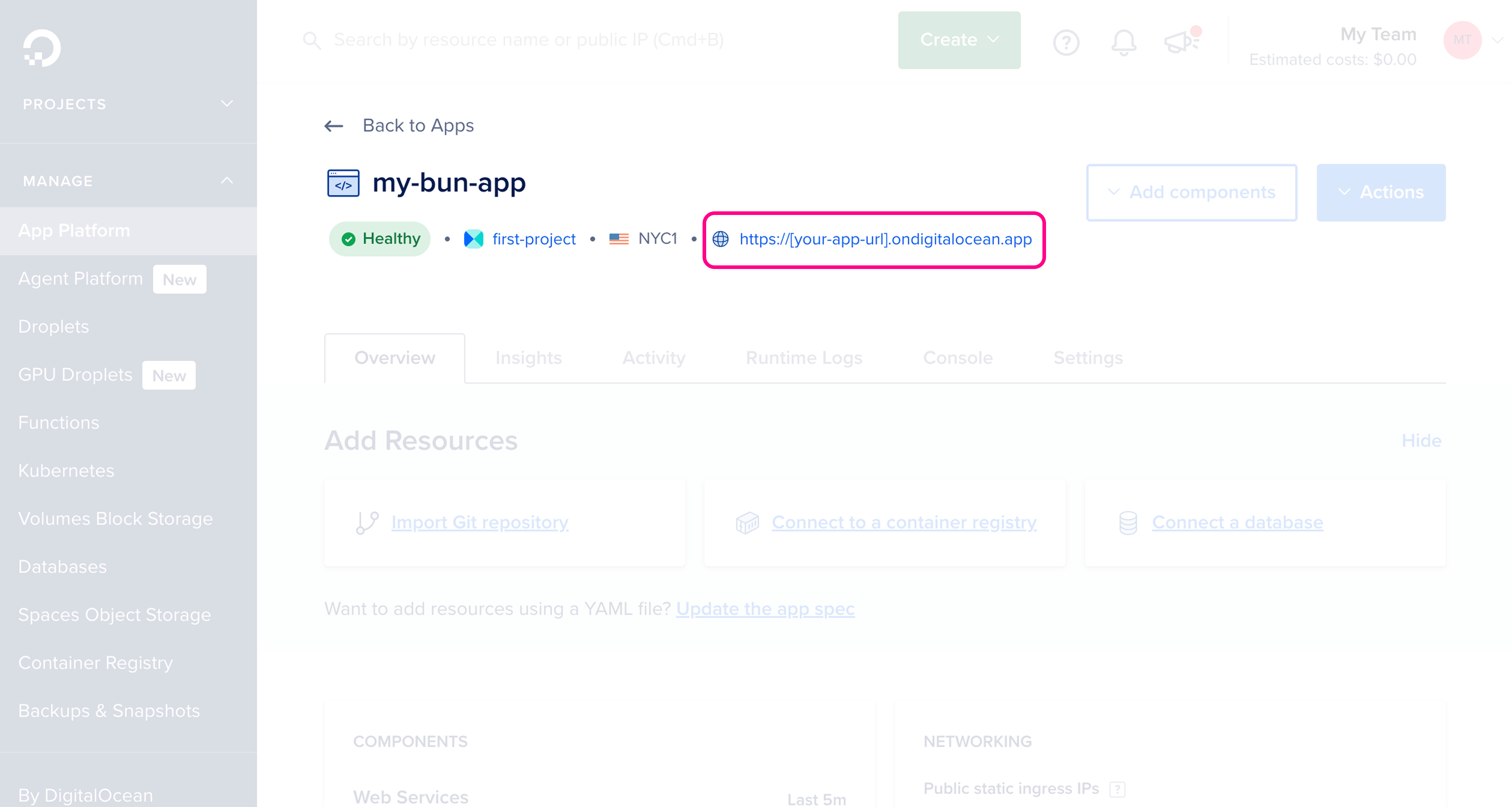
Your app is now live. Once the app is created, you should see it in the App Platform dashboard with its public URL.