

测试运行器
Bun 的快速内置 Jest 兼容测试运行器,支持 TypeScript、生命周期钩子、模拟和监视模式
Bun 自带一个快速且与 Jest 兼容的测试运行器。测试在 Bun 运行时中执行,并支持以下功能。
- TypeScript 和 JSX
- 生命周期钩子
- 快照测试
- UI 与 DOM 测试
- 使用
--watch的监视模式 - 使用
--preload的脚本预加载
运行测试
bun test
你可以使用类似 Jest 的 API,以 JavaScript 或 TypeScript 编写测试。请参阅编写测试。
 math.test.ts
import { expect, test } from "bun:test";
test("2 + 2", () => {
expect(2 + 2).toBe(4);
});
测试运行器会递归搜索工作目录中符合以下模式的文件:
*.test.{js|jsx|ts|tsx|mjs|cjs|mts|cts}*_test.{js|jsx|ts|tsx|mjs|cjs|mts|cts}*.spec.{js|jsx|ts|tsx|mjs|cjs|mts|cts}*_spec.{js|jsx|ts|tsx|mjs|cjs|mts|cts}
若要筛选要运行的_测试文件_,请向 bun test 传递其他位置参数。路径与任一筛选条件匹配的测试文件都会运行。筛选条件通常是文件名或目录名;目前尚不支持 glob 模式。
bun test <filter> <filter> ...
如果要根据 测试名称 过滤,使用 -t/--test-name-pattern 标志。
# 运行名称中含 "addition" 的所有测试或测试套件
bun test --test-name-pattern addition
若要运行特定文件,确保路径以 ./ 或 / 开头,以区别于筛选名。
bun test ./test/specific-file.test.ts
默认情况下,测试运行器会在单个进程中运行所有测试:它会加载所有 --preload 脚本(请参阅生命周期),然后在一个共享全局环境中运行每个文件。传入 --parallel 可将文件分散到各个 CPU 核心上运行。如果测试失败,测试运行器会以非零退出代码退出。
CI/CD 集成
bun test 支持多种 CI/CD 集成方案。
GitHub Actions
bun test 会自动检测其是否在 GitHub Actions 中运行,并直接向控制台输出 GitHub Actions 注释。
无需额外配置,只需在工作流程中安装 bun 并运行 bun test。
如何在 GitHub Actions 工作流程中安装 bun
要在 GitHub Actions 工作流程中使用 bun test,添加如下步骤:
jobs:
  build:
    name: build-app
    runs-on: ubuntu-latest
    steps:
      - name: Checkout
        uses: actions/checkout@v4
      - name: Install bun
        uses: oven-sh/setup-bun@v2
      - name: Install dependencies # (假设你的项目有依赖)
        run: bun install # 如果喜欢,也可以用 npm/yarn/pnpm 代替
      - name: Run tests
        run: bun test
JUnit XML 报告(GitLab 等)
要写入 JUnit XML 报告,请将 --reporter=junit 与 --reporter-outfile 一起传入。
bun test --reporter=junit --reporter-outfile=./bun.xml
bun test 仍会像往常一样写入 stdout/stderr,并在运行结束时将 JUnit XML 报告写入指定路径。
JUnit XML 是 CI/CD 管道中报告测试结果的流行格式。
超时设置
使用 --timeout 标志指定每个测试的超时时间,单位为毫秒。如果测试超时,Bun 会将其标记为失败。默认值为 5000。
# 默认值是 5000
bun test --timeout 20
并发测试执行
要跨 CPU 核运行测试文件,请参阅 --parallel。以下标志控制文件_内部_测试的并发性。
默认情况下,Bun 会在每个测试文件中按顺序运行所有测试。并发执行会并行运行异步测试,从而加快包含相互独立测试的测试套件。
--concurrent 标志
使用 --concurrent 标志,实现各测试文件内部的所有测试并发执行:
bun test --concurrent
启用此标志后,除非测试标记为 test.serial,否则所有测试都会并行运行。
--max-concurrency 标志
用 --max-concurrency 标志控制最大并发测试数量:
# 限制最大并发测试为 4 个
bun test --concurrent --max-concurrency 4

# 默认值是 20
bun test --concurrent
此限制有助于在运行大量并发测试时防止资源耗尽。默认值为 20。
test.concurrent
单独标记测试为并发执行,即使未使用 --concurrent 也能并行运行:
math.test.tsimport { test, expect } from "bun:test";
// 这些测试相互并行运行
test.concurrent("concurrent test 1", async () => {
await fetch("/api/endpoint1");
expect(true).toBe(true);
});
test.concurrent("concurrent test 2", async () => {
await fetch("/api/endpoint2");
expect(true).toBe(true);
});
// 此测试顺序执行
test("sequential test", () => {
expect(1 + 1).toBe(2);
});
test.serial
即使启用 --concurrent 标志,也强制测试顺序执行:
math.test.tsimport { test, expect } from "bun:test";
let sharedState = 0;
// 这些测试必须顺序运行
test.serial("first serial test", () => {
sharedState = 1;
expect(sharedState).toBe(1);
});
test.serial("second serial test", () => {
// 依赖前一个测试
expect(sharedState).toBe(1);
sharedState = 2;
});
// 如果启用 --concurrent,此测试可并行执行
test("independent test", () => {
expect(true).toBe(true);
});
// 测试限定符链式调用
test.failing.each([1, 2, 3])("chained qualifiers %d", input => {
expect(input).toBe(0); // 对每个输入,该测试预期失败
});
重试失败的测试
使用 --retry 标志自动重试失败的测试,最多重试指定次数。如果测试失败后在后续尝试中通过,Bun 会将其报告为通过。
bun test --retry 3
每个测试可以通过 { retry: N } 设置覆盖全局的 --retry 值:
// 使用全局 --retry 值
test("uses global retry", () => {
  /* ... */
});

// 使用自己的重试次数覆盖 --retry
test("custom retry", { retry: 1 }, () => {
  /* ... */
});
你也可以在 bunfig.toml 中设置:
[test]
retry = 3
重新运行测试
使用 --rerun-each 标志多次运行每个测试。这有助于发现不稳定或非确定性的测试失败。
bun test --rerun-each 100
随机化测试执行顺序
使用 --randomize 标志以随机顺序运行测试,有助于发现依赖共享状态或执行顺序的测试。
bun test --randomize
使用 --randomize 时,Bun 会在测试摘要中显示用于随机化的种子:
bun test --randomize
# ... 测试输出 ...
 --seed=12345
 2 pass
 8 fail
Ran 10 tests across 2 files. [50.00ms]
使用 --seed 实现可复现的随机顺序
使用 --seed 标志指定随机化种子,以便在调试依赖执行顺序的失败测试时复现相同的测试顺序。
# 复现之前的随机运行顺序
bun test --seed 123456
--seed 标志会隐式启用 --randomize,因此无需同时指定这两个标志。相同的种子始终会产生相同的测试执行顺序。
失败即停止 --bail
使用 --bail 标志,在测试失败达到指定次数后中止测试运行。默认情况下,Bun 会运行所有测试并报告所有失败,但在 CI 中,提前停止测试并减少 CPU 使用量可能更为合适。
# 发生 1 次失败即停止
bun test --bail

# 发生 10 次失败即停止
bun test --bail=10
监视模式
与 bun run 类似,bun test 接受 --watch 标志,以监视更改并重新运行测试。
bun test --watch
生命周期钩子
Bun 支持以下生命周期钩子:
| 钩子 | 描述 |
|---|---|
beforeAll | 所有测试开始前执行一次 |
beforeEach | 每个测试开始前执行 |
afterEach | 每个测试结束后执行 |
afterAll | 所有测试完成后执行一次 |
在测试文件中定义钩子,或在使用 --preload 标志预加载的单独文件中定义钩子。
bun test --preload ./setup.ts
请参阅生命周期。
模拟
使用 mock 函数创建模拟函数。
math.test.tsimport { test, expect, mock } from "bun:test";
const random = mock(() => Math.random());
test("random", () => {
const val = random();
expect(val).toBeGreaterThan(0);
expect(random).toHaveBeenCalled();
expect(random).toHaveBeenCalledTimes(1);
});
或者使用 jest.fn();其行为完全相同。
math.test.tsimport { test, expect, mock } from "bun:test"; // [!code --]
import { test, expect, jest } from "bun:test"; // [!code ++]
const random = mock(() => Math.random()); // [!code --]
const random = jest.fn(() => Math.random()); // [!code ++]
请参阅模拟。
快照测试
bun test 支持快照测试。
math.test.ts// toMatchSnapshot 示例用法
import { test, expect } from "bun:test";
test("snapshot", () => {
expect({ a: 1 }).toMatchSnapshot();
});
要更新快照,请使用 --update-snapshots 标志。
bun test --update-snapshots
请参阅快照。
UI 与 DOM 测试
Bun 兼容流行的 UI 测试库:
请参阅 DOM 测试。
大型代码库
对于包含数千个测试文件的测试套件,bun test 提供了多个可组合使用的调优选项:工作进程、隔离级别、跨机器分片,以及基于运行时长的调度。并行与隔离测试运行深入介绍了每一项。以下按大致收益顺序介绍它们的配合方式:
1. 使用每个核心:--parallel。 每个核心使用一个工作进程,文件一次分配一个。
2. 决定需要多少隔离。 --parallel 会为每个文件提供全新的全局环境,这是安全的默认设置,也是 Jest/Vitest 的做法。如果文件之间不会泄漏状态(它们在共享同一个全局环境的普通 bun test 下已经可以通过),--parallel --no-isolate 可让每个工作进程只评估一次导入和预加载脚本,而不是每个文件评估一次。对于由许多小文件组成的测试套件,这通常是最大的性能提升。请参阅对比方式。
3. 跨机器拆分:--shard=i/n。 确定性拆分,无需协调器。每个 CI 作业运行一个分片,而每个分片仍会在本地使用 --parallel。
4. 按耗时而非数量均衡:--timings。 有了记录的耗时数据后,Bun 会拆分分片,使每个分片的总耗时大致相同。拆分采用最长处理时间优先的方式,同时将路径相邻的文件放在一起,以保持工作进程的模块缓存处于预热状态。每个工作进程会先启动耗时最长的文件,空闲工作进程则会接手剩余文件中耗时最长的文件。这样,偶然最后启动的某个长文件就不会拖慢整个运行过程。
5. 自动保持耗时数据最新:--update-timings。 每个分片会写入其运行文件的耗时;下一次运行会读取所有这些数据。在 GitHub Actions 中,看起来如下:
jobs:
  test:
    strategy:
      matrix:
        shard: [1, 2, 3, 4]
    steps:
      - uses: actions/checkout@v4
      - uses: oven-sh/setup-bun@v2
      - run: bun install
      # last successful run's per-shard timings (nothing on the very first run)
      - uses: actions/cache/restore@v4
        with:
          path: .bun-test-timings
          key: bun-test-timings-${{ github.run_id }}
          restore-keys: bun-test-timings-
      - run: |
          bun test --parallel --shard=${{ matrix.shard }}/4 --update-timings \
            --timings=.bun-test-timings/next/${{ matrix.shard }}.json \
            $(ls .bun-test-timings/*.json 2>/dev/null | sed 's/^/--timings=/')
      - uses: actions/upload-artifact@v4
        with:
          name: timings-${{ matrix.shard }}
          path: .bun-test-timings/next/${{ matrix.shard }}.json
  save-timings:
    needs: test
    runs-on: ubuntu-latest
    steps:
      - uses: actions/download-artifact@v4
        with:
          pattern: timings-*
          path: .bun-test-timings
          merge-multiple: true
      - uses: actions/cache/save@v4
        with:
          path: .bun-test-timings
          key: bun-test-timings-${{ github.run_id }}
每个分片必须读取相同的一组耗时文件,这样各分片的耗时才能汇总为整个测试套件的耗时。因此,一次运行会读取上次运行的文件(从缓存中恢复),并将自身的文件写入其他仍在运行的同级分片无法读取的位置(如上方的 next/)。如果第 2 步适用于你,请在 bun test 命令中添加 --no-isolate。
6. 在文件内部:test.concurrent 适用于将大部分时间花在等待上的 I/O 密集型测试。
性能
Bun 的测试运行器非常快速。
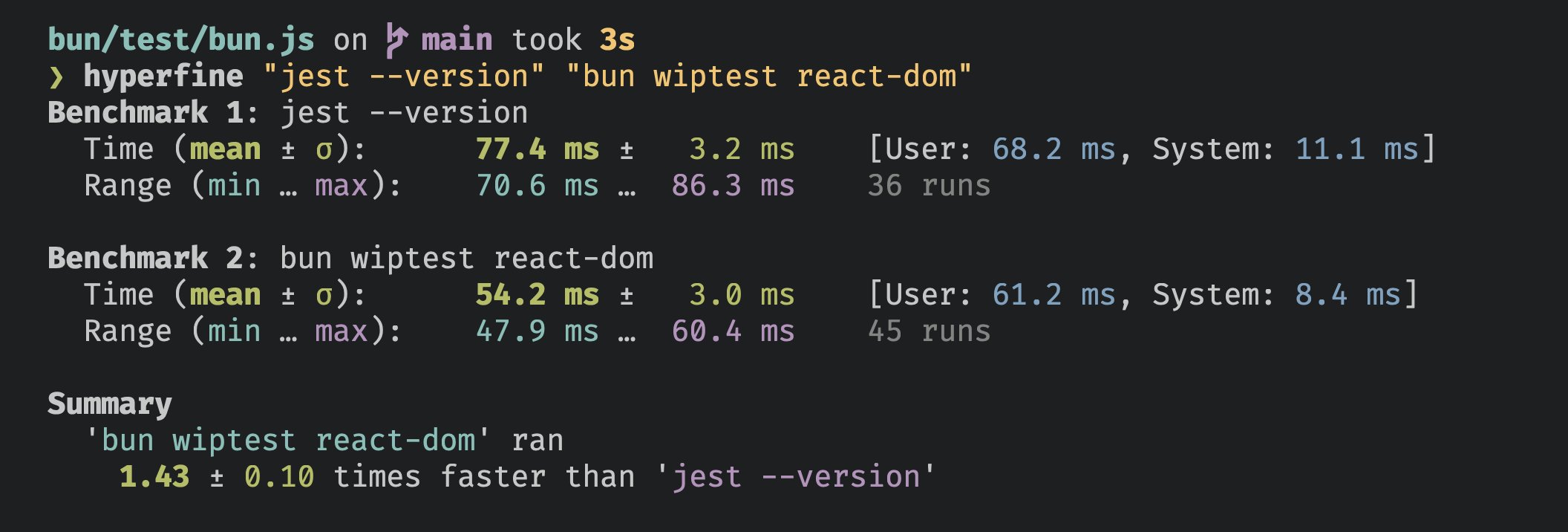
AI 代理集成
当你将 Bun 的测试运行器与 AI 编程助手结合使用时,可以启用更安静的输出,在保留失败详情的同时去除其余噪音。
环境变量
设置以下任一环境变量即可启用适合 AI 的输出:
CLAUDECODE=1- 适用于 Claude CodeREPL_ID=1- 适用于 ReplitAGENT=1- 通用 AI 代理标志
行为
当 Bun 检测到 AI 代理环境时:
- 只详细显示测试失败信息
- 隐藏通过、跳过及待办测试指示符
- 保留统计摘要
# 示例:为 Claude Code 启用安静输出
CLAUDECODE=1 bun test

# 仍显示失败和摘要,隐藏通过测试的详细输出
CLI 用法
bun test <patterns>
执行控制
--timeoutnumberdefault 5000设置每个测试的超时时间,单位为毫秒(默认 5000)
--rerun-eachnumber重新运行每个测试文件 NUMBER 次,以帮助发现某些错误
--retrynumber最多重试失败的测试 NUMBER 次。每个测试的 { retry: N } 会覆盖此标志
--concurrentboolean将所有测试视为 test.concurrent() 测试
--randomizeboolean以随机顺序运行测试
--seednumber设置测试随机化的随机种子
--bailnumber失败 NUMBER 次后退出测试套件。如果不指定数字,则默认为 1
--max-concurrencynumberdefault 20最大同时执行的测试数量(默认 20)
测试过滤
--todoboolean包含标记为 test.todo() 的测试
--test-name-patternstring只运行名称匹配给定正则表达式的测试。别名:-t
报告
--reporterstring测试输出报告格式。可用选项:junit(需要 --reporter-outfile)、dots。默认:控制台输出。
--reporter-outfilestring报告格式的输出文件路径(与 --reporter=junit 一起使用时必需)
--dotsboolean启用点状报告。--reporter=dots 的简写
覆盖率
--coverageboolean生成覆盖率报告
--coverage-reporterstringdefault text以 text 和/或 lcov 格式报告覆盖率。默认 text
--coverage-dirstringdefault coverage覆盖率文件的目录。默认 coverage
快照
--update-snapshotsboolean更新快照文件。别名:-u
示例
运行所有测试文件:
bun test
运行所有文件名包含 "foo" 或 "bar" 的测试文件:
bun test foo bar
运行所有测试文件,仅包含名称中含有 "baz" 的测试:
bun test --test-name-pattern baz